HubSpot Support: Contact Info, Email, Phone Number


Finding the right HubSpot support channel should not require its own troubleshooting session. But between gated phone numbers, tier-dependent access, and chatbots that loop you in circles, getting a human on the line is harder than it looks.
We pulled together every current contact method, sorted by plan level, so you know exactly which support options are available to you right now.
Why Trust Our HubSpot Support Guide
Our team at CRM360 contacts HubSpot support on behalf of clients regularly. Across 200+ CRM projects, we have learned which channels get fast responses, which ones waste your time, and what to say to skip the back-and-forth.
Need More Than a Support Ticket?
If your issue keeps bouncing between HubSpot reps without resolution, that is usually a sign the problem sits in your setup, not the platform. Get in touch with us and we will find the root cause.
How to Contact HubSpot Support
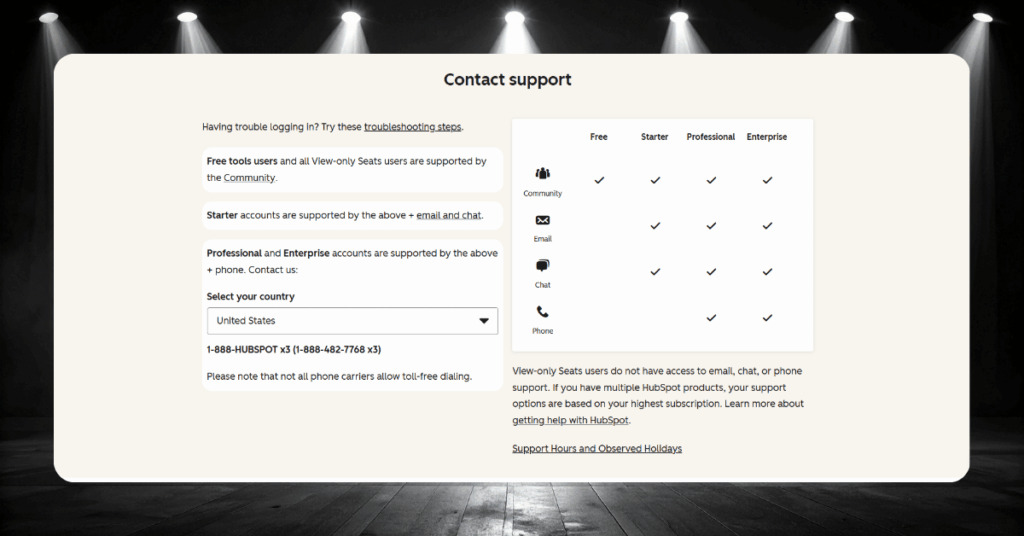
HubSpot does not make it especially obvious how to reach a real human being. The support channels available to you depend entirely on your subscription tier, which catches a lot of new users off guard.
Free users are limited to community resources, Starter users can access email and chat, and Professional or Enterprise users get the full range including phone support.
Every Way to Reach HubSpot Support
| Channel | Availability | Best For |
|---|---|---|
| Phone (+1 888-482-7768 ext. 3) | Professional & Enterprise | Urgent, time-sensitive issues |
| Starter, Professional & Enterprise | Detailed issues with screenshots | |
| Live Chat | Starter, Professional & Enterprise | Quick questions, real-time troubleshooting |
| Callback Request | Professional & Enterprise | When you cannot wait on hold |
| Contact Form (Help Widget) | All paid users | Submitting support tickets |
| Community Forum | All users including Free | General questions, peer advice |
| Social Media | All users | Public queries, awareness of outages |
| Knowledge Base | All users including Free | Self-service troubleshooting |
All direct support channels (email, chat, phone) are accessed through the Help widget inside your HubSpot account. Click the question mark icon in the top right navigation bar, type your question, and select “Contact us” if the suggested articles do not solve your problem.
Quick Tip: Have your Hub ID ready before you reach out through any channel. You can find it by clicking your account name in the top right corner of HubSpot. Including this number in your initial message lets the support rep pull up your portal instantly, which means a faster resolution for you.
HubSpot Email Support
Email is one of the most practical ways to reach HubSpot’s support team, particularly when your issue requires screenshots, error logs, or detailed context. It is available to anyone on a Starter, Professional, or Enterprise subscription.
To submit an email ticket, click the question mark icon in the top right corner of your HubSpot account, type your question, and choose “Contact us” followed by “Email Support.”
Best Email Template to Use
Structure makes all the difference when contacting support. A well-organised email gets you a faster, more accurate response because the rep does not need to come back with clarifying questions. Here is a template that works well:
Subject: [Short description of issue] – Hub ID: [Your Hub ID]
Hi HubSpot Support,
We are experiencing an issue with [specific tool, e.g. “Workflow #12345” or “the email editor”]. When we [describe the action], we expected [expected result], but instead [describe what actually happened]. This started on [date]. Here is a direct link to the affected asset: [paste URL]. We have attached a screenshot showing the error. Our Hub ID is [number]. Thank you.
This format gives the rep everything they need in one message, which means fewer back-and-forth emails and a quicker fix.
What Response Time to Expect
HubSpot generally responds to email tickets within one business day. Complex issues involving integrations or API behaviour might take longer, especially if the ticket needs escalation to a specialist team.
Tickets submitted on weekends or holidays will sit in the queue until the next working day. If your issue is time-sensitive, phone or chat will get you there faster.
Tips for Faster Email Responses
Make sure your HubSpot employee access toggle is switched on so the support rep can actually look inside your account. You will find this under Settings > Account Defaults > Security.
Attach screen recordings whenever possible. A quick Loom video showing the bug in action is worth a thousand words and often cuts the resolution time in half.
HubSpot Phone Number
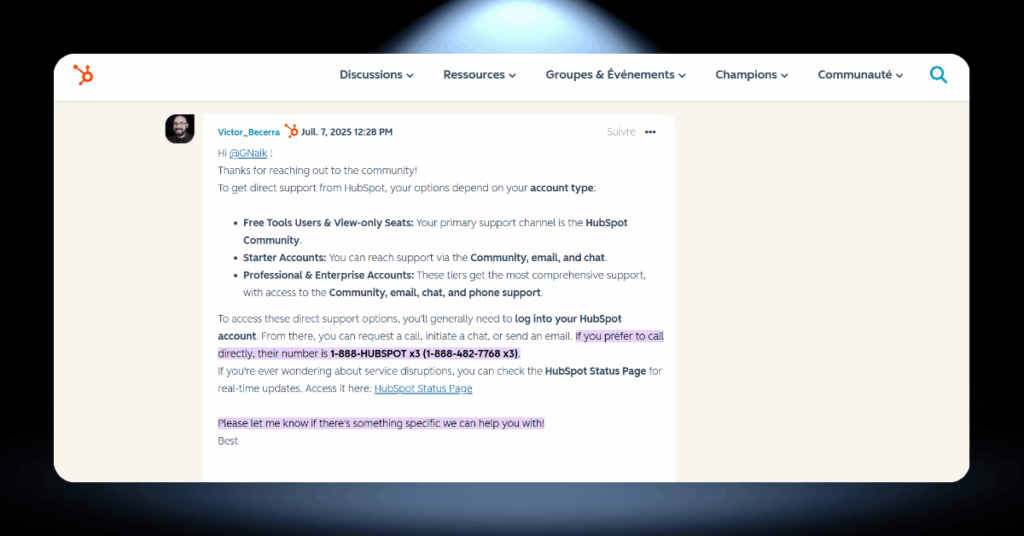
The main support line is +1 888-HUBSPOT ext. 3 (+1 888-482-7768 ext. 3). Phone support is reserved for Professional and Enterprise subscribers only. HubSpot also offers international numbers for customers outside the US, which you can find on their contact page by selecting your country from the dropdown.
When Is the Best Time to Call?
HubSpot’s US-based phone reps are typically available from 7:00 a.m. to 8:00 p.m. EST on weekdays, operating out of Cambridge, MA and Portsmouth, NH.
Outside of those hours and on weekends, you can still call in, but expect longer wait times. For the shortest hold times, try calling early in the morning or during the midday lull between 12:00 and 2:00 p.m. EST.
HubSpot Live Chat Support
Live chat is available to Starter, Professional, and Enterprise users and is one of the fastest ways to get a response. Click the help icon in your HubSpot portal, type your question, and select “Chat to the team” when the option appears.
Chat works best for quick questions about settings, feature locations, or simple troubleshooting. For complex problems that need screen sharing or deep technical investigation, phone or email is a better fit.
HubSpot Contact Form
The contact form lives inside the Help widget in your HubSpot account. It is not a standalone webpage you can visit without logging in.
Click the question mark icon in your top navigation bar, scroll past the suggested articles, and click “Contact us.” The form asks for a problem overview, a detailed description, and your preferred language.
After submitting, track your ticket through your Support Inbox within HubSpot.
HubSpot Social Media Support
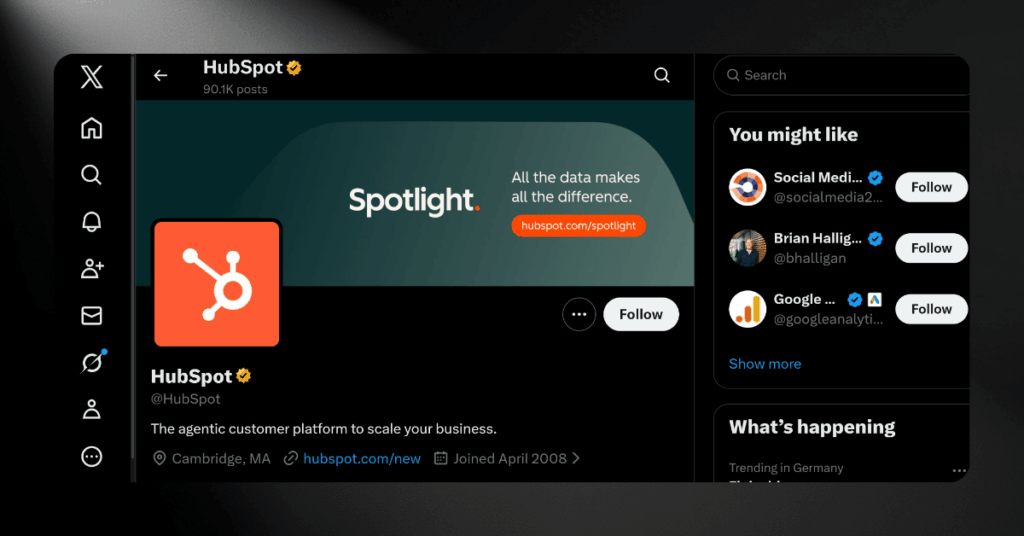
These are not dedicated support channels, but they are useful for flagging outages or public issues:
- X (formerly Twitter): @HubSpot and @HubSpotSupport
- LinkedIn: HubSpot on LinkedIn
- Facebook: HubSpot on Facebook
- YouTube: HubSpot on YouTube (tutorials and walkthroughs)
HubSpot Office Details

HubSpot is a publicly traded company (NYSE: HUBS) headquartered in Cambridge, Massachusetts. The company operates on a hybrid model with offices across multiple continents, serving over 194,000 customers in more than 120 countries.
HubSpot Physical Address & Headquarters
HubSpot’s main headquarters is at 2 Canal Park, Cambridge, MA 02141, United States, in the Kendall Square technology district near MIT. The company also occupies space at 25 First Street in Cambridge, a renovated 1860s building known as The Davenport.
Major global offices include Dublin, Ireland (1 Sir John Rogerson’s Quay), Singapore, London (199 Bishopsgate), San Francisco, Toronto, Sydney, Tokyo, Berlin, Paris, Bogota, Ghent, and Portsmouth, NH.
HubSpot Office Hours & Availability
US phone support runs weekdays from 7:00 a.m. to 8:00 p.m. EST. Email and chat are available around the clock for paid subscribers, though response times outside business hours may stretch slightly. Phone lines are typically closed on major US holidays, but chat and email remain accessible.
Good to Know: HubSpot operates a hybrid work model, so not all teams are in-office daily. For support purposes, physical office visits are not necessary. All interactions happen through the digital channels listed above.
HubSpot’s Official Support Resources
Beyond direct support channels, HubSpot offers a solid library of self-service resources. These are often the fastest path to an answer, especially for common questions about features, settings, and troubleshooting.
1. HubSpot Knowledge Base
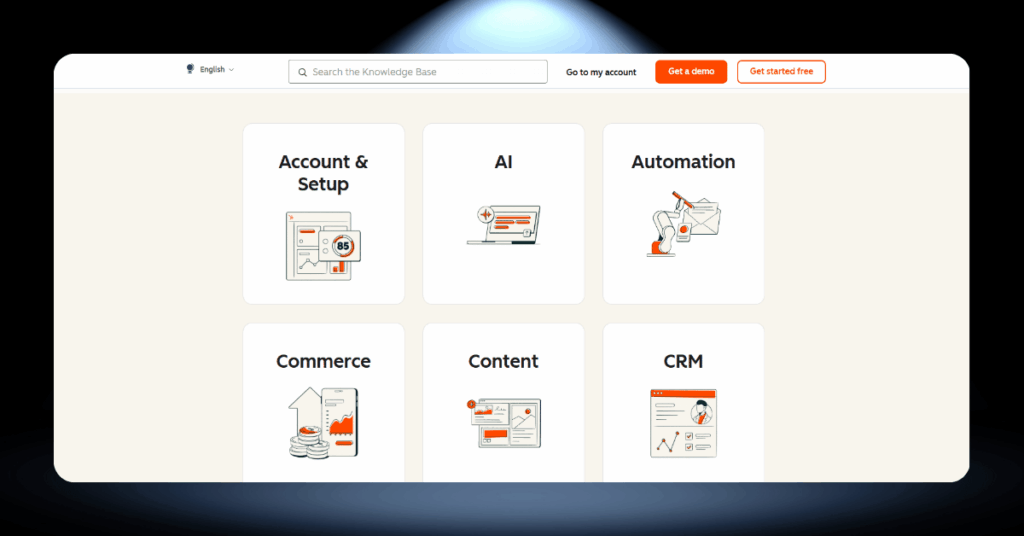
The HubSpot Knowledge Base at knowledge.hubspot.com is a searchable library of how-to guides, reference documentation, and troubleshooting articles. It covers every HubSpot tool, from CRM basics to advanced API configurations.
This resource is available to all users, including those on the Free plan. It is updated regularly as new features roll out, and most articles include step-by-step screenshots.
2. HubSpot Community Forum
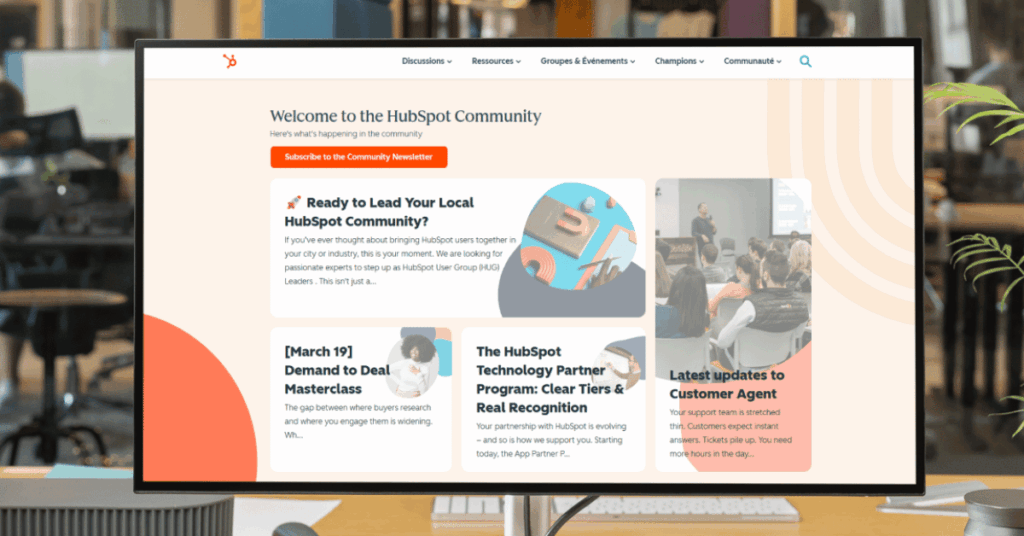
The HubSpot Community at community.hubspot.com is an active forum where HubSpot users, partners, and employees discuss problems, share solutions, and suggest product improvements.
This is the only direct interaction channel available to Free users. It is also a great place for Professional and Enterprise users to find answers that may not be covered in the official documentation, particularly for niche use cases or creative workarounds.
3. HubSpot System Status Page
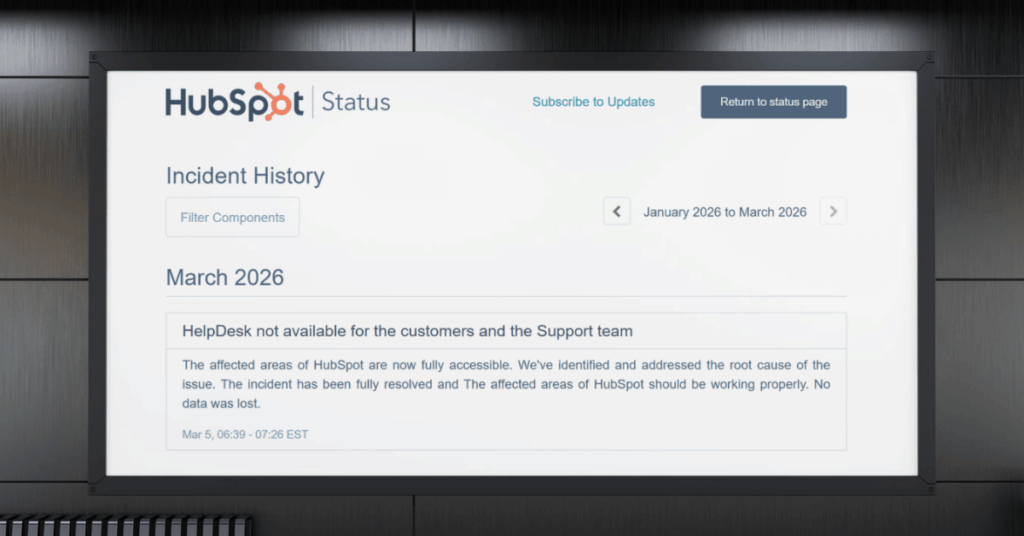
Before filing a support ticket, it is always worth checking the HubSpot Status Page at status.hubspot.com. This page provides real-time information on system performance, active incidents, and historical uptime data.
You can also subscribe to webhook notifications to get alerted whenever HubSpot creates, updates, or resolves an incident. If something looks off in your portal and the status page shows an active incident, there is a good chance the problem is on HubSpot’s end rather than yours.
Common HubSpot Support Issues & How to Solve Them
After working with HubSpot across hundreds of projects, we have seen the same problems surface over and over. Most of them are fixable without a support ticket if you know where to look.
Below are the issues that generate the most support requests, along with step-by-step fixes and guidance on when it makes sense to call in the experts.
Issue #1: Login & Account Access Problems
Getting locked out of your HubSpot account is more common than you might think. Forgotten passwords, expired two-factor authentication codes, and browser caching issues are the usual culprits.
When to Contact HubSpot
If you have tried all the above and still cannot get in, reach out to support. They can manually unlock your account once you verify your identity through the email address tied to your portal.
Issue #2: Data Sync & Integration Failures
Integration issues between HubSpot and third-party tools like Salesforce, Shopify, or Zendesk are a major source of support tickets. Property mapping errors, API connection failures, and duplicate record creation are the most common symptoms.
When You Should Escalate
If sync errors persist after checking credentials and mappings, or if you are seeing widespread data loss across records, open a support ticket immediately. Include the specific error messages and the names of the affected integrations.
Issue #3: Workflow & Automation Errors
Workflows are one of HubSpot’s most powerful tools, but they are also one of the most fragile if not built carefully. Common issues include workflows failing to trigger, sending duplicate emails, or enrolling the wrong contacts.
When Support Is the Right Move
If HubSpot’s built-in issue detection is flagging errors you cannot resolve, or if a workflow has sent incorrect emails to a large list, contact support right away. Time-sensitive automation failures are best handled over phone or chat.
Issue #4: Email Deliverability & Bounces
Seeing high bounce rates or emails landing in spam? This is a common headache, especially for teams that recently migrated to HubSpot from another platform.
When to Reach Out for Help
If your domain is properly authenticated and your lists are clean but deliverability is still poor, something deeper may be going on. Contact HubSpot support and ask them to review your sending reputation and email logs.
What to Expect When You Contact HubSpot Support
Knowing what to expect before you reach out can save you a lot of frustration. HubSpot’s support experience varies depending on the channel you choose, the complexity of your issue, and even the time of day you make contact.
Here is what we have learned from managing hundreds of HubSpot support interactions on behalf of our clients.
Realistic Response Times by Channel
Response speed is one of the biggest concerns for HubSpot users, and the truth is that it depends heavily on which channel you pick. Phone and chat are fast for simple questions, but complex technical issues can take days to resolve regardless of how you reach out. Here are the benchmarks we have seen in practice:
- Phone callback: Typically within 5 minutes of submitting a request
- Live chat: Connected to a rep within 2-5 minutes during business hours
- Email: First response within one business day, though simple queries often get answered in a few hours
- Complex escalations: 2-3 business days if the ticket needs to move to a specialist team
- Community Forum: Varies widely, from a few hours to several days depending on the topic
- Status page incidents: Updates posted every 15-30 minutes during active outages
If a ticket has been sitting without an update for more than two business days, reply to the thread and ask for a status update. Be specific about business impact. Professional and Enterprise users can also request to speak with a Customer Success Manager to push things forward.
What HubSpot Support Will and Will Not Do
HubSpot’s support team is genuinely helpful for platform-specific troubleshooting. They can walk you through settings, debug tool behaviour, and help you understand how features work. They are trained on the product and have access to your portal, which makes them effective for most day-to-day questions.
Where things get tricky is when your question crosses into strategy, custom development, or multi-platform territory. HubSpot support has a defined scope, and anything outside of it gets redirected to their Solutions Partner directory. Understanding this boundary upfront saves you from dead-end tickets.
HubSpot support will help with tool-specific troubleshooting, such as fixing a broken workflow, resolving email deliverability issues, debugging form submissions, explaining feature settings, and investigating unexpected platform behaviour. They can also assist with basic import questions, user permissions, domain configuration, and CRM record management. If you can point to a specific tool or page inside your portal where something is not working as expected, their team is well equipped to dig in.
HubSpot support will not write or debug custom API code for you. They will not advise on cross-platform strategy involving Salesforce, Dynamics 365, or ServiceNow. They do not handle full data migrations, advanced BI reporting with tools like Snowflake or Power BI, CRM adoption training programmes, or complex multi-stage workflow architecture. They also will not help you choose between HubSpot plans or advise on whether HubSpot is the right platform for your business. For any of these, you need a dedicated CRM partner who can look at the full picture.
HubSpot Support FAQ
Let Us Handle Your HubSpot
You have read the guides, filed the tickets, and sat through the hold music. If your HubSpot portal still is not working the way it should, it might be time for a different approach.
Our team of 30 CRM specialists works with HubSpot every single day. From portal audits and data migrations to custom builds and ongoing managed services, we handle the things that support tickets cannot fix.
Reach out to CRM360 and tell us what is going wrong. We will take it from there.