
How To Fix Common HubSpot Errors, Issues & Problems


Nothing kills your momentum like a HubSpot error that you cannot make sense of. A workflow stops firing, an integration quietly breaks, or a form throws a code you have never seen before. And the support docs? They are not always written for people in a hurry.
This guide covers the most common HubSpot issues, what causes them, and how to fix them fast without waiting three days for a support ticket response.
Why Trust Our HubSpot Troubleshooting Advice
At CRM360, our 30 specialists fix broken HubSpot setups for a living. Across 200+ projects, we have debugged everything from failed API syncs to corrupted workflows. When we say a fix works, it is because we have tested it in a live environment, not copied it from a forum thread.
Dealing With a HubSpot Issue Right Now?
If your problem goes deeper than a quick settings change, our team can step in and diagnose it properly. Reach out here and we will help you get things running again.
Top Reasons Why HubSpot Errors Happen
HubSpot errors don’t appear out of nowhere. Nearly every failed import, broken workflow, or mysterious error code traces back to a predictable cause. Here are the ones we see over and over again.
- Reason #1: Dirty or incomplete data in contact, company, or deal records
- Reason #2: Expired API keys or OAuth tokens on connected integrations
- Reason #3: Field mapping mismatches between HubSpot and third-party tools
- Reason #4: Hitting API rate limits or daily import row caps
- Reason #5: Deleted properties that workflows or reports still depend on
- Reason #6: Permission gaps where users can’t access certain tools or endpoints
- Reason #7: Wrong data formats, like text in number fields or non-standard dates
- Reason #8: Conflicting automation rules acting on the same records simultaneously
- Reason #9: Subscription tier restrictions silently blocking features
What makes troubleshooting frustrating is that these causes frequently overlap. A single import failure might involve dirty data and a field mapping mismatch at the same time. A workflow that stops enrolling contacts could stem from a deleted property combined with a permission change someone made last week.
Bottom Line: Most HubSpot errors fall into three buckets: bad data going in, misconfigured connections between systems, and users bumping into platform limits they didn’t know existed. Get those three areas under control and you’ll prevent the majority of problems before they ever surface.
Common HubSpot Issues and Their Solutions
Some HubSpot problems come up so often that they deserve their own playbook. These are the five issues we get asked about more than anything else. Each one includes a full breakdown of the problem and a step-by-step fix you can follow right now.
Duplicate Contacts Keep Appearing
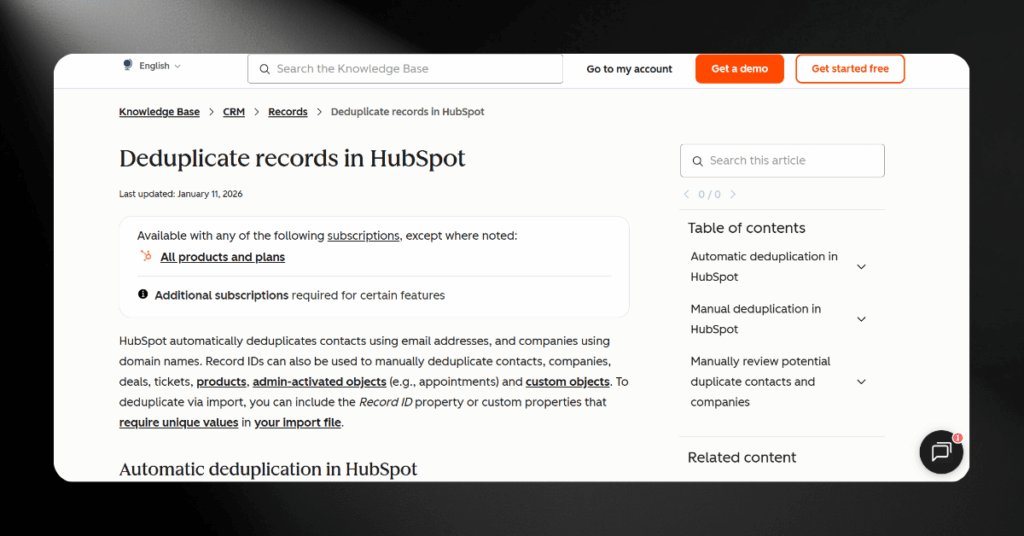
Duplicate records are one of the most frustrating CRM problems out there. They corrupt your reports, confuse your sales reps, and lead to embarrassing situations where a customer gets the same email twice.
Duplicates typically show up after data imports, form submissions with slight variations (think “john@company.com” versus “John@Company.com”), or when multiple integrations create contacts at the same time.
Workflows Suddenly Stop Working
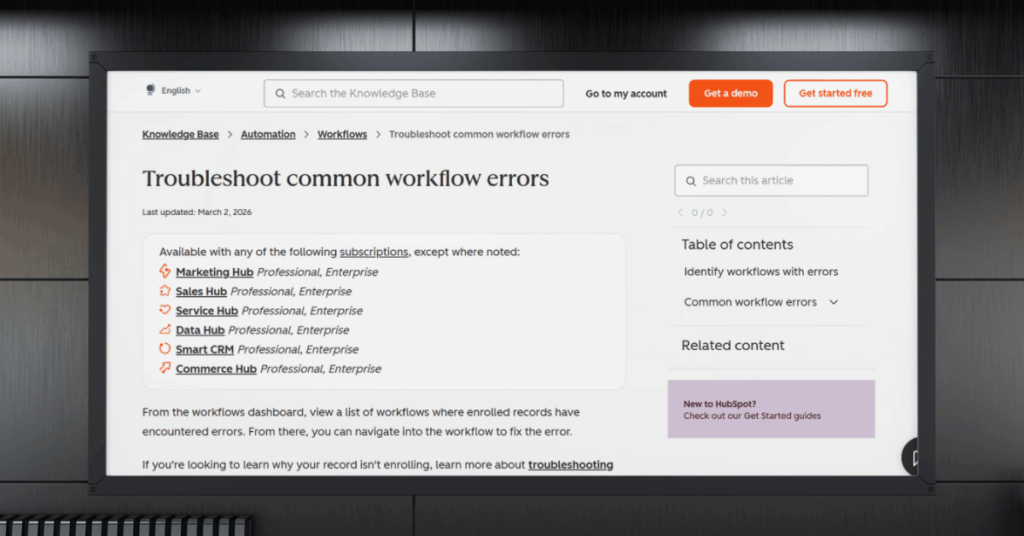
You built a workflow, tested it, and it ran perfectly for weeks. Then one day it just stops enrolling contacts or starts skipping actions without explanation.
The most common culprits are deleted properties that the workflow still references, enrollment triggers that no longer match any contacts, and subscription tier changes that quietly removed access to certain workflow features.
Email Deliverability Drops
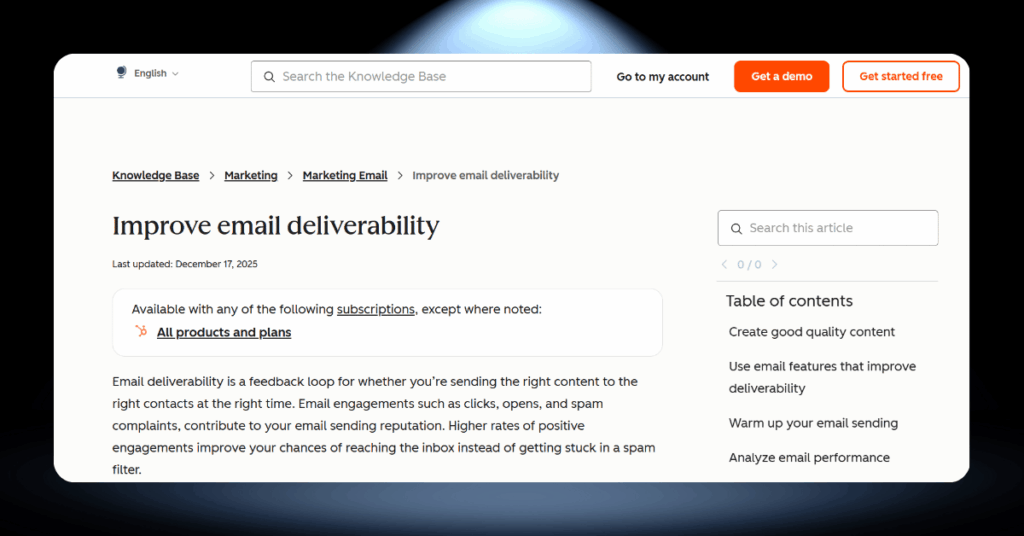
Open rates are falling. Bounce rates are climbing. Your carefully crafted emails are landing in spam folders instead of inboxes. Deliverability issues in HubSpot can quietly wreck your entire email marketing operation.
The usual causes are a bloated contact list full of inactive or invalid addresses, missing email authentication records (SPF, DKIM, DMARC), and email content that triggers spam filters.
Data Sync Breaks With Other Platforms

If you sync HubSpot with Salesforce, Microsoft Dynamics 365, or any other system, you’ve probably experienced the dreaded sync failure. Contacts stop updating. Deals vanish. Properties that should match between platforms show completely different values.
These breakdowns usually trace back to field mapping mismatches, expired API credentials, or conflicting sync rules where both platforms try to overwrite the same record simultaneously.
Import Files Keep Getting Rejected
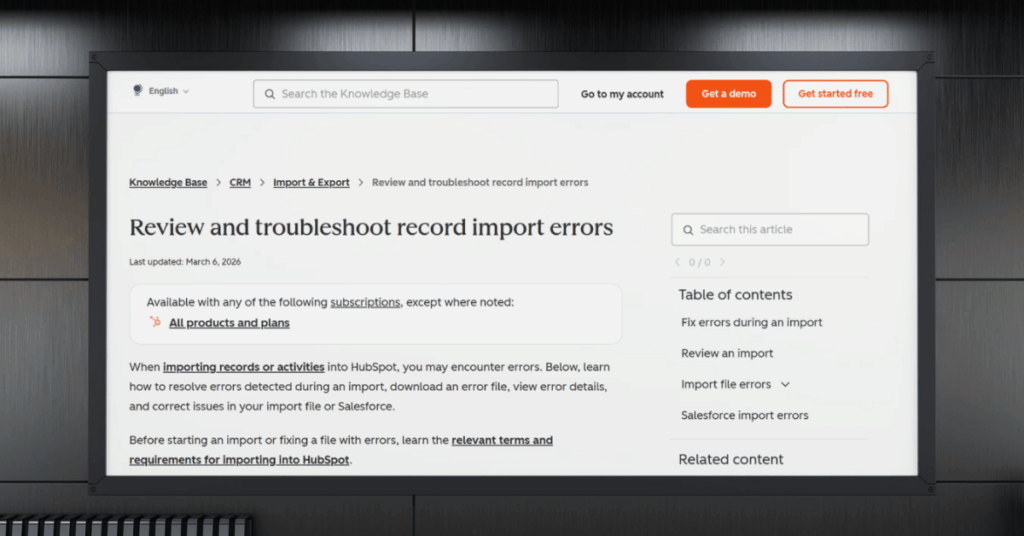
You’ve formatted your CSV, double-checked the headers, and clicked “Import,” but HubSpot throws back an error. Import failures are a constant pain point, especially during migrations or when uploading large contact lists.
The most common causes are columns without headers, date values in the wrong format, invalid email addresses, and dropdown properties where the imported value doesn’t match an existing option.
HubSpot Complete Error Code List
Bookmark this section. When HubSpot throws an error at you, this is where you come to figure out what it means and what to do about it. We’ve grouped every common error code into four categories so you can find yours fast.
Each table below includes the error code, a plain-English explanation, and the recommended fix. If you’re dealing with an API error, start with the first two tables. If your import just failed, skip to the import section.
HubSpot HTTP Status Code Errors
These are the standard HTTP response codes that HubSpot’s API returns when something goes wrong with a request. You’ll see them in your integration logs, developer console, or any tool that connects to HubSpot’s API. A code in the 400 range means the problem is on your end; a code in the 500 range means HubSpot is having trouble on theirs.
| Code | Name | What It Means | Recommended Fix |
|---|---|---|---|
| 400 | Bad Request | The request is malformed or contains invalid data | Check request syntax, URL, and payload formatting |
| 401 | Unauthorized | Authentication credentials are invalid or missing | Verify your API key or OAuth token and re-authenticate |
| 403 | Forbidden | Valid credentials but insufficient permissions | Confirm your token has the required scopes for the endpoint |
| 404 | Not Found | The requested resource or endpoint does not exist | Verify the URL and confirm the record or endpoint is correct |
| 409 | Conflict | A conflicting operation is already in progress | Wait and retry, or check for concurrent processes on the same record |
| 429 | Too Many Requests | API rate limit exceeded | Implement exponential backoff and respect the Retry-After header |
| 500 | Internal Server Error | Something went wrong on HubSpot’s servers | Wait a few minutes and retry; check status.hubspot.com if persistent |
| 502 | Bad Gateway | HubSpot’s processing limits have been hit | Pause requests briefly, then retry with reduced volume |
| 503 | Service Unavailable | Servers are overloaded or under maintenance | Wait and retry; monitor status.hubspot.com for outage updates |
| 504 | Gateway Timeout | Request took too long to process | Reduce query complexity, paginate large requests, retry after a pause |
HubSpot CRM Validation Errors
These errors appear in the JSON response body when HubSpot rejects data you’ve sent through the API. Unlike HTTP codes, these use descriptive category names instead of numbers. You’ll find them in the “category” or “code” fields of the error response, and they tell you exactly which property or value caused the failure.
| Error Category | What It Means | Recommended Fix |
|---|---|---|
| VALIDATION_ERROR | Request data failed property validation | Check property types and required fields in your request |
| RATE_LIMITS | Too many API requests in the allotted window | Implement throttling and exponential backoff |
| PROPERTY_DOESNT_EXIST | Referenced property not found in the portal | Verify property names and create missing properties |
| INVALID_INTEGER | Number property received a non-numeric value | Ensure numeric fields contain only numbers |
| INVALID_EMAIL | Email address format is not valid | Validate email format before sending to HubSpot |
| OBJECT_NOT_FOUND | The specified record ID does not exist | Confirm the record ID and that the record hasn’t been deleted |
| DUPLICATE_OBJECT | A record with this unique identifier already exists | Use createOrUpdate endpoints instead of create-only |
| MISSING_REQUIRED_PROPERTY | A required property was not included in the request | Add all mandatory fields before submitting |
| INVALID_OPTION | Value doesn’t match an allowed dropdown option | Use exact internal values for enumeration properties |
HubSpot Import Error Codes
These codes show up in the downloaded error file after a failed or partially failed import. You’ll find them in the “Error code” column of the CSV. They use capital letters and underscores in the file (like INVALID_DATE), but we’ve listed them in that same format below so you can match them directly.
| Error Code | What It Means | Recommended Fix |
|---|---|---|
| AMBIGUOUS_ENUMERATION_OPTION | Value matches more than one dropdown option | Use the exact internal value, not the display label |
| COULD_NOT_FIND_OBJECT_TYPE | Object type in the file is not recognised | Verify column headers match valid HubSpot object types |
| DUPLICATE_ASSOCIATION_ID | Same unique identifier used for multiple rows | Ensure each row has a unique email or domain |
| DUPLICATE_COMPANY_DOMAIN | Company domain matches multiple existing records | Merge duplicate companies before re-importing |
| DUPLICATE_OBJECT_FOR_CREATE | Duplicate records detected within the import file | Remove duplicate rows from your CSV |
| FAILED_TO_ASSOCIATE | HubSpot could not link records together | Verify unique identifiers and association file requirements |
| FAILED_TO_OPT_OUT | Contact opt-out failed during import | Confirm all contacts in the opt-out file have valid emails |
| INVALID_ALTERNATE_ID | Company domain is not a valid format | Ensure domains include a proper extension (.com, .org, etc.) |
| INVALID_DATE | Date value doesn’t match the selected format | Standardise all dates to the format chosen during import |
| INVALID_DEAL_STAGE | Deal stage doesn’t match existing pipeline stages | Use valid stage names or add the stage in HubSpot first |
| INVALID_EMAIL | Email address format is not valid | Check for typos and ensure proper email formatting |
| INVALID_ENUMERATION_OPTION | Value doesn’t match any existing dropdown option | Add the missing option to the property or correct the value |
| INVALID_NUMBER | Number field contains non-numeric characters | Remove letters, symbols, or spaces from number columns |
| INVALID_RECORD_ID | Record ID does not match any existing record | Verify record IDs against your HubSpot database |
| LIMIT_EXCEEDED | File exceeds size or account limits | Split large files and confirm your subscription’s row limits |
| MISSING_REQUIRED_PROPERTY | A required property is empty or missing from the row | Add the required value to each affected row |
| TOO_MANY_ERRORS_IN_ROW | A single row contains more than 10 errors | Fix all errors in the affected row and re-import |
| UNKNOWN_COLUMN_HEADER | Column header doesn’t match any HubSpot property | Rename columns to match existing property names exactly |
Workflow and Automation Errors
These errors appear inside HubSpot’s Automation Issues panel and in workflow history logs. They’re not traditional error codes like the ones above. Instead, they show up as status labels on individual workflow actions that have failed or been skipped.
| Error | What It Means | Recommended Fix |
|---|---|---|
| Action failed | A specific workflow step could not execute | Check the action’s configuration for deleted properties or invalid values |
| Enrollment skipped | Contact met suppression criteria or was already enrolled | Review suppression lists and re-enrollment settings |
| Goal not met | Contact did not reach the workflow’s goal criteria | Verify goal conditions and check if contacts are exiting early |
| Branch error | If/then branch references a property or value that no longer exists | Update branch conditions to reference active properties |
| Send failed | Email action could not deliver the message | Check the email asset exists, is published, and the contact has a valid address |
| Integration action failed | A third-party action (Slack, Salesforce, etc.) did not complete | Re-authenticate the connected app and verify field mappings |
| Rate limited | Too many workflow actions executed in a short window | Stagger enrollment or reduce concurrent active workflows |
Top HubSpot Mistakes to Avoid
Not every HubSpot problem is caused by a bug or a system error. Some of the most expensive mistakes come from how the platform is set up and maintained. These are the three we see teams make over and over again.
Mistake #1: Skipping Proper Onboarding and Setup
Jumping straight into HubSpot without a configuration plan is one of the costliest mistakes teams make. The default settings rarely match your actual business processes, and patching things together later takes far more time than doing it right from the start.
When pipelines, properties, and lifecycle stages don’t reflect how your team actually works, everything downstream breaks. Reports become unreliable, automations misfire, and your sales team stops trusting the data.
How to Prevent This
Map out your sales process, lifecycle stages, and required properties before you configure anything. Create a written plan covering pipeline stages, lead scoring criteria, and property definitions. If you lack in-house expertise, work with a certified partner to get it right the first time.
Mistake #2: Ignoring Data Hygiene Until It’s Too Late
Dirty data doesn’t announce itself with alarm bells. It builds up quietly over months until your email campaigns have a 40% bounce rate and your sales team can’t trust a single report. By that point, cleaning up is a massive project.
Duplicate records multiply. Outdated contacts pile up. Inconsistent formatting across properties makes segmentation nearly useless. The longer you wait, the harder and more expensive the cleanup becomes.
What Keeps Your Data Clean
Schedule monthly data audits. Use HubSpot’s duplicate management tools proactively. Set required properties on forms to prevent incomplete records from entering the system. For large databases, consider Operations Hub for automated data cleansing.
Mistake #3: Building Overly Complex Workflows
There’s a temptation to build one massive workflow that handles every scenario and edge case. The result is usually an unmanageable monster that nobody on your team can troubleshoot when something goes wrong.
Complex workflows with dozens of if/then branches are extremely difficult to debug. When one step breaks, the ripple effect can impact hundreds of contacts before anyone notices.
The Smarter Approach
Break large workflows into smaller, modular ones that each handle a single function. Name them clearly, add internal notes to each step, and document the logic externally so new team members can understand the system without reverse-engineering it.
How to Troubleshoot HubSpot Errors and Problems
Clicking around randomly hoping the problem fixes itself is not a strategy. Follow this step-by-step process instead. It works for the vast majority of HubSpot errors, whether you’re dealing with API failures, broken workflows, or import rejections.
Clicking around randomly hoping the problem fixes itself is not a strategy. Follow this step-by-step process instead. It works for most HubSpot errors, from API failures to broken workflows and import rejections.
Tip: Document every troubleshooting step you take and the result. If you end up contacting HubSpot support or a CRM partner, this log will dramatically speed up the resolution process.
Step 1: Check the HubSpot Status Page
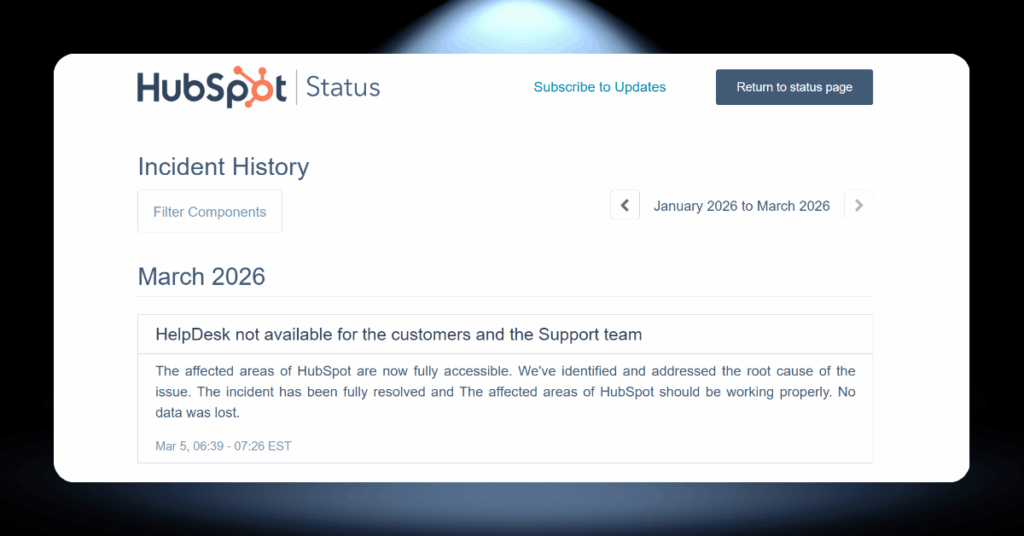
Visit status.hubspot.com before you touch anything else. If HubSpot is experiencing a platform-wide incident, nothing you do locally will fix it.
Subscribe to status updates so you get notified automatically when issues are identified and resolved. This saves hours of unnecessary troubleshooting.
Step 2: Read the Error Message
HubSpot designs its error responses to be human-readable. Look for the “message” field in the response body. It usually explains exactly what went wrong.
For API errors, also note the “correlationId” value. You’ll need it if you file a support ticket, as it lets HubSpot trace your specific request.
Step 3: Reproduce the Problem
Try the same action again to confirm the error is consistent. Test in a different browser or incognito window to rule out caching or extension conflicts.
If the error only affects certain records, compare a failing record to a working one. The difference between the two usually points straight to the cause.
Step 4: Check Permissions and Authentication
Verify that your account has the correct permissions for the action you’re attempting. For 401 or 403 errors, re-check your API key or OAuth token right away.
Confirm that your connected app’s scopes match the endpoints you’re calling. A token with only content access will fail when it tries to reach the Deals API.
Step 5: Review Recent Changes
Open Settings > Audit Logs and look for recent changes by you or other users. Deleted properties, updated integrations, and permission changes are common culprits.
If the problem started right after a specific change, reverse it and test again. That’s usually the fastest path to a fix.
Step 6: Test in Isolation
Disconnect integrations temporarily and test the action in HubSpot alone. For workflows, build a simplified test version with just one or two actions.
This narrows down whether the issue lives inside HubSpot or is coming from an external system. Once you know that, you know where to focus.
When to Escalate or Call for Support
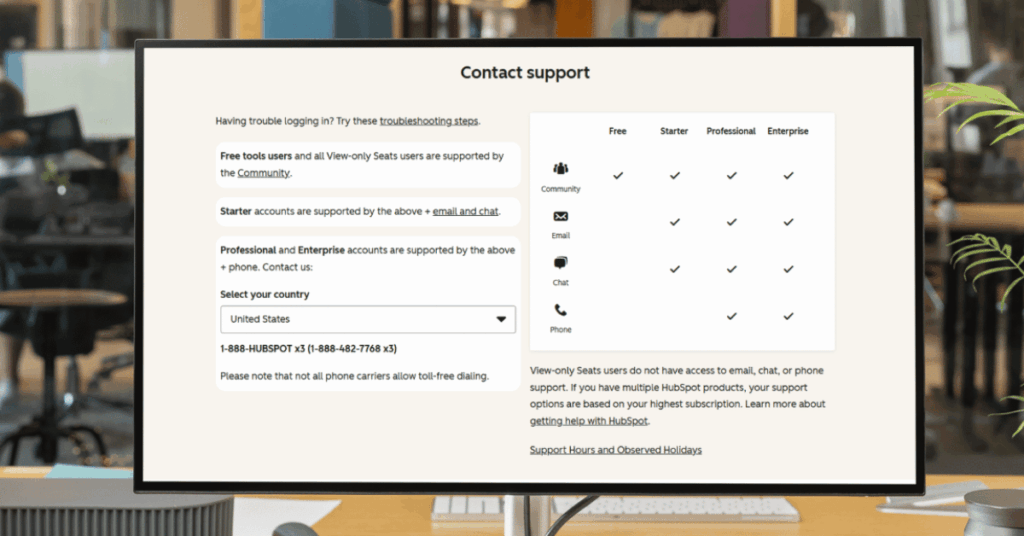
Not every HubSpot problem can or should be solved in-house. Knowing when to escalate can save you hours of frustration and prevent a small issue from turning into a major outage. The key is recognising the difference between problems you can fix yourself and problems that need outside help.
When to Contact HubSpot Support
HubSpot’s support team is your first port of call for platform-side issues that are outside your control. Come prepared with your correlationId, screenshots, and the exact steps to reproduce the error. The more detail you share upfront, the faster they can help.
- Server-side errors (500, 502, 503, 504) that persist beyond 30 minutes
- The status page shows no incident but your issue remains
- Account lockouts or authentication failures you can’t resolve
- Billing-related errors blocking access to features
- Suspected platform bugs that affect core functionality
- Data loss or records disappearing without explanation
When to Bring in External CRM Help
Some problems go beyond what HubSpot’s support desk can handle. If the issue involves complex integrations, custom development, or a full platform overhaul, you need hands-on expertise from someone who’s done it before.
This is where a dedicated CRM agency makes the difference. The question most teams face is whether to keep pushing through on their own or bring in specialists who can fix the root cause properly. Here’s how both approaches compare.
Handling HubSpot problems yourself works fine for straightforward fixes. Merging a few duplicates, adjusting a workflow trigger, or correcting an import file are all things your team can manage with the right guidance.
The risk comes when issues are interconnected. You fix one thing and break another. Without deep platform knowledge, troubleshooting can become a cycle of trial and error that eats up days of productive time.
DIY also falls short when you’re dealing with custom API work, multi-platform integrations, or large-scale data migrations. These require specialised skills that most in-house teams simply don’t have.
Bringing in a CRM partner means the problem gets diagnosed and fixed faster, often in a fraction of the time it would take internally. You also get the benefit of someone who’s seen the same issue across dozens of other companies.
A good partner doesn’t just fix the immediate error. They identify the root cause, put preventive measures in place, and make sure your setup is solid going forward. That’s the difference between a patch and a permanent solution.
HubSpot Errors FAQ
Let’s Get HubSpot Working Again
Errors don’t fix themselves. And the longer they sit, the more they cost you in lost leads, bad data, and wasted time.
Our team has fixed HubSpot problems for over 200 companies, from broken integrations to full platform rebuilds. We know where the problems hide and how to solve them for good.
Ready to stop troubleshooting and start getting results? Get in touch with our HubSpot experts today.