How to Cancel HubSpot in 2026 (Quick Guide)

Looking up how to cancel HubSpot usually means you have already made up your mind. Maybe the costs crept up, maybe your team never adopted it, or maybe you simply found a better fit. Whatever the reason, the cancellation process is not as obvious as it should be.
This guide covers the exact steps, what happens to your data, and the timing details that can save you from paying for an extra billing cycle.
We Have Handled Dozens of HubSpot Exits
CRM360 is an independent CRM agency with 30 specialists across 12+ industries. We regularly help companies transition off HubSpot and onto platforms that fit them better, so we know exactly where the cancellation process gets confusing.
Leaving HubSpot and Need a Smooth Landing?
Cancelling is one thing. Making sure your data, workflows, and integrations survive the move is another. Reach out to us and we will help you migrate cleanly without losing what matters.
Steps to Cancel Your HubSpot Subscription
Here’s the thing most people don’t realize right away: HubSpot doesn’t let you cancel mid-contract. What you’re actually doing is turning off auto-renewal, which tells HubSpot to stop your subscription once your current billing term ends.
That means you’ll keep paying (and keep access) until the end of your commitment period. With that in mind, here’s exactly how to do it, step by step:
- Log in to your HubSpot account at hubspot.com.
- Click your account name in the top-right corner of the screen.
- Select Account & Billing from the dropdown menu.
- Click the Subscriptions tab at the top of the page.
- Locate the specific subscription you want to cancel (Marketing Hub, Sales Hub, Service Hub, etc.).
- Click Cancel auto-renewal next to that subscription.
- Select which products to cancel. To cancel everything, select all products.
- Review the list of features you’ll lose once the cancellation takes effect.
- Tick the checkbox confirming you understand that all users will lose access to these features when the commitment period ends.
- Click Next.
- Choose a cancellation reason from the dropdown options.
- Click Next again.
- Review the full cancellation details, including your effective cancellation date.
- Click Cancel auto-renewal to confirm.
- Check your inbox for a notice of non-renewal sent to the billing admin, confirming the commitment term and exact cancellation date.
If you change your mind before the cancellation date, you can turn auto-renewal back on by going to the same Subscriptions tab and clicking “Turn auto-renewal on.”
Important: You need billing admin permissions to cancel. If you don’t have them, ask your account administrator to either handle the cancellation or grant you the right access level before you start.
HubSpot Cancellation Templates
Turning off auto-renewal in the dashboard is the main way to cancel, but sometimes you need to talk to an actual person. Maybe you have billing questions, need written confirmation, or want to negotiate before you finalize anything.
Below are ready-to-use scripts for every contact method HubSpot offers. Just fill in the bracketed details and you’re good to go.
Email Template (Billing Team)
Send this to billing@hubspot.com, which is HubSpot’s dedicated billing email address. This works for any subscription tier.
Subject: Cancellation Request – [Your Company Name] – Hub ID: [Your Hub ID]
Hello HubSpot Billing Team,
We are writing to confirm the cancellation of our HubSpot subscription(s). Our account details are below:
Company Name: [Your Company Name]
Hub ID: [Your Hub ID]
Billing Admin Email: [Your Email]
Subscription(s) to Cancel: [e.g., Marketing Hub Professional, Sales Hub Starter]
We have already turned off auto-renewal in the dashboard, but we’d like written confirmation that our subscription will not renew beyond the current commitment term ending on [Date].
Please confirm receipt and the effective cancellation date.
Thank you,
[Your Name]
[Your Title]
Phone Script (Professional & Enterprise Only)
Only Professional and Enterprise subscribers can access phone support. Call 1-888-482-7768, then use this script:
“Hi, my name is [Your Name] and I’m calling about account [Your Hub ID]. I’m the billing admin for [Company Name]. We’ve decided to cancel our [Subscription Name] subscription. I’ve already turned off auto-renewal in the dashboard, but I wanted to confirm directly that our account will not be charged after our current term ends on [Date]. Can you verify that and send me a written confirmation?”
Live Chat Script
Starter, Professional, and Enterprise users can access live chat through the Help button inside their HubSpot account. Here’s what to type:
“Hello, I need to confirm the cancellation of our HubSpot subscription. Our Hub ID is [Your Hub ID] and the billing admin email is [Your Email]. We’ve turned off auto-renewal for [Subscription Name]. Can you confirm the effective cancellation date and that no further charges will be applied after our commitment term?”
In-App Support Ticket
If you prefer a paper trail through HubSpot’s own system, submit a support ticket. Click the Help icon in the top-right of your HubSpot dashboard, then click Contact Us, then choose Email Support.
“Subject: Cancellation Confirmation Needed – Hub ID [Your Hub ID]
I have turned off auto-renewal for our [Subscription Name] subscription. Please confirm in writing that our subscription will end on [Date] and that no further charges will be processed. Billing admin: [Your Email]. Thank you.”
Pre-Cancellation Checklist for HubSpot
Before you go through with canceling, it’s worth running through a few things first. Some of the most common reasons people leave HubSpot can actually be resolved without canceling at all.
Work through this checklist honestly. If you get to the end and still want to cancel, at least you’ll know you’ve explored every option.
What Happens When You Cancel HubSpot?
Once you’ve turned off auto-renewal and your commitment term ends, your account doesn’t just vanish. A few important things kick in that you should be prepared for.
Here’s what to expect across access, data, reactivation, and billing.
Do You Lose Access to HubSpot Immediately?
No. You keep full access to all paid features until the end of your current billing term. If you’re eight months into a twelve-month contract, you still have four months of normal use ahead of you.
Once the term ends, your account automatically downgrades to HubSpot’s free tools. You can still log in, but premium features tied to your previous subscription will be gone.
What Happens to Your HubSpot Data, Files, and History?
Your contact and deal records stay in the system after you downgrade to the free tier. They’re not deleted automatically, which gives you time to export everything or plan your next move.
However, free HubSpot accounts are deleted after 120 days of inactivity. If you cancel and don’t log in for four months, your data could disappear permanently. The safest move is to export contacts, deals, and any other critical data before your paid subscription ends.
Can You Reactivate HubSpot?
If your free account gets deactivated due to inactivity, HubSpot does allow you to recover inactive accounts within a certain window. But there’s no guarantee all your data will be intact.
If you decide to resubscribe later, you can do so through your existing account as long as it hasn’t been permanently deleted. The bottom line: don’t rely on HubSpot to keep your data safe forever after you cancel. Export everything first.
Will You Still Be Charged by HubSpot?
Yes, you’ll be charged until the end of your commitment term. HubSpot’s contracts are non-cancelable mid-term. If you signed up for an annual plan in March and cancel in October, you’ll pay through the following March.
Once your commitment term is up and auto-renewal is off, no further charges will be processed. You’ll receive a confirmation of non-renewal from HubSpot sent to your billing admin’s email.
Does HubSpot Offer Refunds or a Money-Back Guarantee?
The short answer: no.
According to HubSpot’s Terms of Service, all fees are non-refundable and all payment obligations are non-cancelable.
There is no standard money-back guarantee on subscription fees.
For billing disputes, you can email billing@hubspot.com and make your case. Some users have reported receiving credits, but these are handled case by case.
One exception: If HubSpot materially degrades the functionality of the service and cannot provide a comparable replacement, you may be entitled to a pro-rated refund of unused fees.
How to Delete Your HubSpot Account Permanently
Canceling your subscription and deleting your account are two different things. Turning off auto-renewal stops future charges, but your account and all its data still exist on HubSpot’s servers.
If you want a clean break with nothing left behind, you’ll need to go through a separate deletion process. Here’s how to permanently remove your HubSpot account:
- Make sure all paid subscriptions are fully inactive (not just set to cancel).
- Confirm you have billing admin permissions on the account.
- Export all data you want to keep, including contacts, deals, and reports.
- Click your account name in the top-right corner.
- Select Account & Billing.
- Click the Delete Account tab.
- Click Delete account.
- Enter your Hub ID when prompted to confirm.
- Click Yes, delete to permanently remove your account.
The deletion can take up to 24 hours to fully process across all HubSpot systems.
Warning: This action is irreversible. Once you confirm deletion, all contacts, deals, workflows, reports, and integrations connected to that account are gone for good. There is no recovery option. Make absolutely sure you’ve exported everything you need before taking this step.
Common Reasons People Are Canceling HubSpot
We talk to companies every week who are weighing up whether to stay with HubSpot or move on. While every situation is different, the same handful of frustrations keep coming up in those conversations.
Here are the three reasons we hear most often.
Reason #1: Costs That Escalate Faster Than Expected
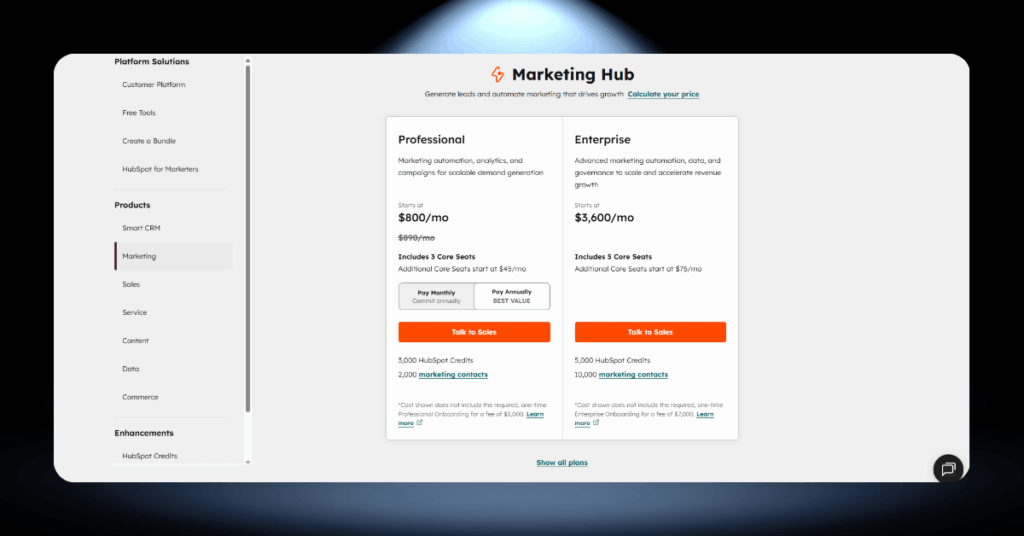
HubSpot’s pricing can snowball quickly. What starts as a manageable monthly expense becomes a serious budget concern once your contact list grows, you add more seats, or you realize you need features locked behind a higher tier.
Many small and mid-sized businesses feel the squeeze hardest when they outgrow Starter and face the jump to Professional. The price gap between those tiers catches a lot of teams off guard.
- Contact tier upgrades that trigger automatic price increases
- Per-seat costs adding up as the team grows
- Add-ons and API limits pushing the bill higher
Reason #2: Paying for Features Nobody Uses
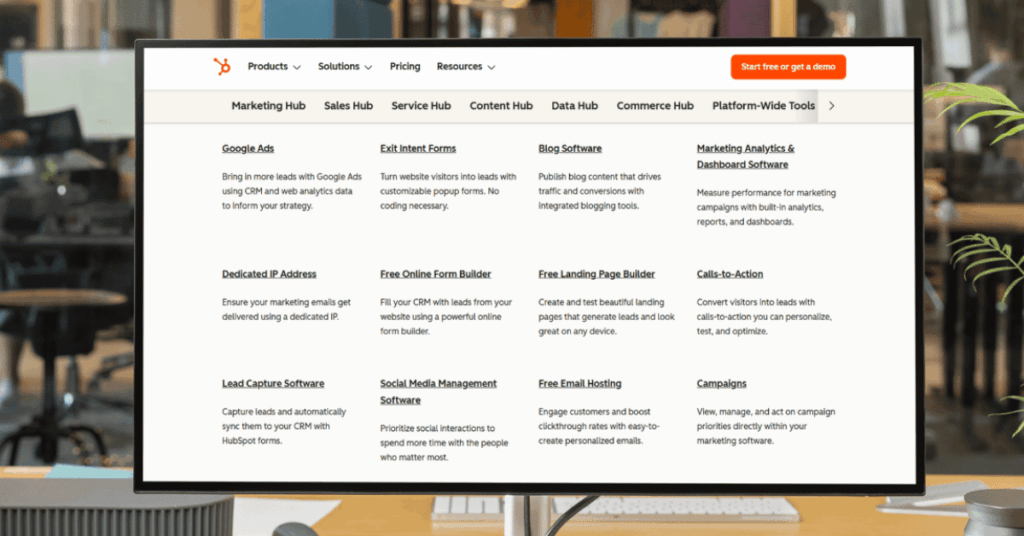
Plenty of teams sign up for Professional or Enterprise with big plans, only to discover they’re using a fraction of what’s available. Paying hundreds or thousands per month for tools that sit untouched doesn’t make financial sense.
This often happens when a company buys HubSpot for one specific purpose, like email marketing, but ends up on a plan that bundles in sales tools, service tools, and reporting features they never touch.
- Workflows and automation tools that never got set up
- Reporting dashboards that nobody checks
- Hubs purchased as a bundle but only one is actively used
Reason #3: The Platform Feels Too Complex
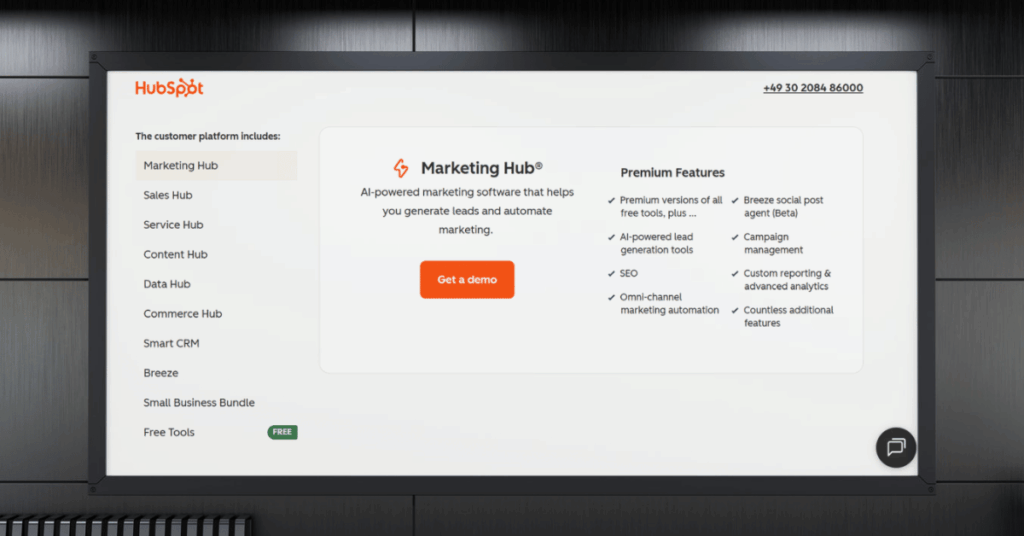
HubSpot has grown into a massive ecosystem, and that sheer size overwhelms teams without a dedicated admin. When a CRM creates more confusion than clarity, people start looking for something simpler.
This is especially common in smaller teams where everyone wears multiple hats. Nobody has time to become a HubSpot expert, and without proper setup, the platform can feel like more work than it saves.
- Too many menus, settings, and options for non-technical users
- Onboarding that doesn’t stick without ongoing support
- Constant platform updates that change where things are
Top HubSpot Alternatives and How to Switch
If you’re leaving HubSpot, you’ll want a new home for your data and your team. The right choice depends on what drove you away in the first place, whether that’s cost, complexity, or missing functionality.
Based on what we’ve seen across hundreds of CRM projects, here are three strong alternatives worth considering. Each one solves a different problem, so pick the one that matches your biggest frustration with HubSpot.

Salesforce: Best for Scaling Enterprise Teams
Salesforce offers deep customization, complex workflows, and enterprise-grade reporting that goes well beyond what HubSpot provides at the higher tiers. If you’ve outgrown HubSpot and have the resources for proper setup and administration, Salesforce gives you nearly unlimited flexibility.
The trade-off is complexity. Salesforce often requires a dedicated admin, and the learning curve is steeper. But for larger sales organizations with sophisticated processes, the investment tends to pay off quickly.

Zoho CRM: Best for Budget-Conscious Growing Businesses
Zoho packs solid automation, reporting, and lead management into pricing that sits well below HubSpot’s comparable tiers. It’s particularly popular with small and mid-sized teams who want real CRM functionality without the hefty monthly bill.
The interface feels less polished than HubSpot’s, and the learning resources aren’t quite as extensive. But if value for money is your top priority, Zoho is genuinely hard to beat.

Pipedrive: Best for Sales Teams That Want Simplicity
Pipedrive was built around a visual sales pipeline that makes deal tracking fast and intuitive. If complexity was your main complaint about HubSpot, Pipedrive strips things back to what salespeople actually need on a daily basis.
It’s not an all-in-one platform, which means you may need separate tools for marketing and customer service. But for pure sales pipeline management, few platforms do it better.
HubSpot Contracts: What Most People Miss
Most of the frustration people feel when canceling HubSpot comes down to one thing: they didn’t fully understand the contract terms when they signed up. Whether you’re trying to leave or just thinking about it, knowing how HubSpot structures its agreements can save you a lot of headaches.
Here’s what we wish every HubSpot customer knew from day one.
How HubSpot Billing and Commitment Terms Actually Work
HubSpot offers both monthly and annual billing, but the commitment term is what really matters. Even if you pay monthly, you might still be locked into a twelve-month commitment. That means you can’t walk away after three months just because you’re paying month to month.
The distinction trips people up constantly. Monthly billing is about how often you’re charged. The commitment term is about how long you’re contractually obligated to stay. These are two separate things, and confusing them is one of the most common mistakes we see.
- Annual commitment, monthly billing: You pay each month but owe for the full year regardless
- Annual commitment, annual billing: You pay the entire year upfront in one lump sum
- Month-to-month: No long-term lock-in, but you’ll pay a higher per-month rate
- Downgrades and cancellations: Only take effect at the end of your commitment term
- Auto-renewal: Kicks in automatically unless you actively turn it off beforehand
Negotiating vs. Canceling: Which Move Makes More Sense?
Before you cancel, it’s worth asking yourself whether a better deal would change your mind. HubSpot’s retention team has some flexibility on pricing, especially at renewal time. We’ve seen companies save anywhere from 15% to 30% simply by having a direct conversation before their contract renewed.
That said, negotiating only makes sense if HubSpot is still the right platform for your needs. If the problem is fundamental, like the platform being too complex for your team or missing features you need, no discount will fix that. Be honest about whether price is the real issue or just the easiest one to point to.
Staying makes sense when your team is already trained on HubSpot, your data is clean, and your workflows are running smoothly. The cost of switching CRMs is often underestimated. Between data migration, retraining, rebuilding automations, and the inevitable productivity dip during transition, leaving can cost more than a renewed contract at a lower rate.
If HubSpot works for your process but the price feels too high, negotiate. A discounted renewal with the platform you already know often beats starting over somewhere new.
Leaving makes sense when the platform consistently creates more problems than it solves. If your team avoids logging into HubSpot, if you’re paying for Hubs nobody touches, or if your business needs have shifted toward something more specialized, it’s time to go.
Don’t let sunk cost thinking keep you on a platform that doesn’t fit. The money you’ve already spent is gone either way. What matters is whether the next twelve months of payments will deliver enough value to justify staying. If the answer is no, cancel with confidence and move to something better.
How to Cancel HubSpot FAQ
Ready to Switch CRMs?
Canceling is the easy part. Migrating without losing data, workflows, or momentum is where things get tricky.
Our team handles CRM migrations every week, moving businesses from HubSpot to Salesforce, Zoho, Dynamics 365, and beyond. We know exactly where things tend to break, and we make sure they don’t.
If you want a smooth transition with zero data loss, get in touch with our CRM team today.