LinkedIn Pipedrive Integration (Connection Setup)

Setting up a LinkedIn Pipedrive integration should be simple, but anyone who has tried it knows the process is not as plug-and-play as it sounds. Between native limitations, third-party connectors, and sync settings that break quietly, there are a few things worth knowing before you start.
This guide walks through the actual setup step by step, covers the connection methods that work, and flags the common pitfalls that trip most teams up.
Why Trust Us on Integrations
Our team at CRM360 has configured 200+ CRM projects involving complex integrations across Pipedrive, Salesforce, HubSpot, and dozens of niche-specific tools. When something connects cleanly or breaks silently, we have probably seen it firsthand.
Struggling With Your Pipedrive Setup?
Whether your LinkedIn data is not syncing properly or you need a full integration built from scratch, our team can help. Get in touch here and we will sort it out with you, free of charge.
Why Connect LinkedIn and Pipedrive?
Your sales reps are already spending hours on LinkedIn every week, building relationships and hunting for prospects. The problem starts when that valuable prospect data stays trapped inside LinkedIn while your pipeline lives in Pipedrive. Bridging that gap turns two disconnected tools into one streamlined sales engine.
- Eliminate manual data entry between platforms
- Keep contact records accurate and up to date
- Speed up follow-ups after LinkedIn conversations
- Give managers full visibility into LinkedIn-sourced pipeline
- Reduce duplicate contacts across your CRM
- Track outreach activity from first message to closed deal
When these benefits stack up across a full sales team, the impact compounds quickly. Even saving 30 minutes of data entry per rep per day adds up to dozens of recovered selling hours each month.
Does LinkedIn Integrate with Pipedrive Natively?
No. Pipedrive has no built-in LinkedIn integration, and LinkedIn doesn’t offer a direct connector either.
To sync data between them, you’ll need a third-party tool like a browser extension, an automation platform, or a dedicated LinkedIn outreach app with a Pipedrive connector.
Best Ways to Sync Pipedrive with LinkedIn
If you’ve ever copied a LinkedIn contact into Pipedrive by hand, you already know exactly why this sync matters. Here are the top three ways to get it done efficiently.
1. Browser Extensions That Overlay Pipedrive on LinkedIn
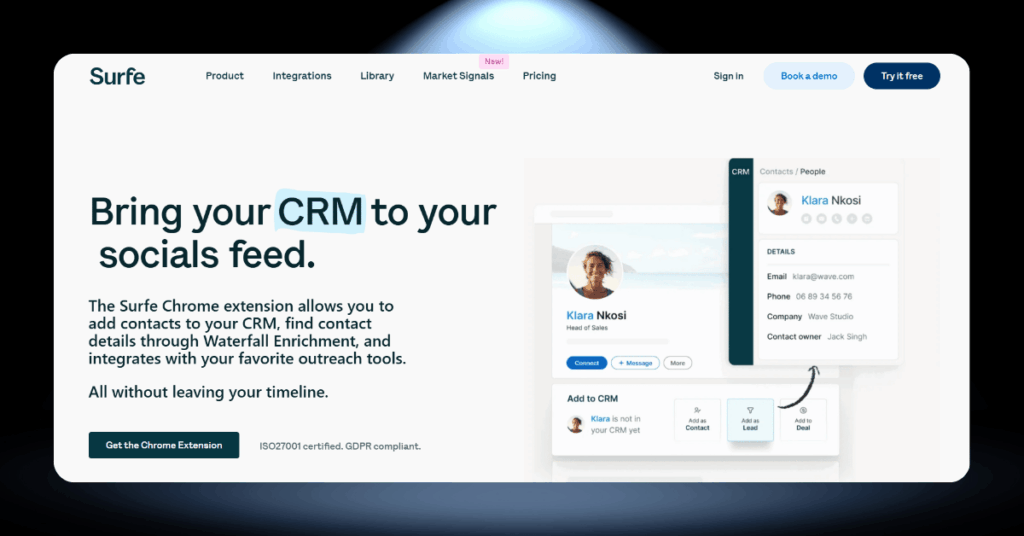
Best for: Sales reps who prospect directly on LinkedIn and want one-click CRM updates without switching tabs.
Browser extensions like Surfe, LinkMatch, and LeadCRM sit on top of your LinkedIn interface and add Pipedrive controls directly to each profile page. You can view existing CRM records, create new contacts, add deals, and even sync LinkedIn messages without ever leaving your browser tab.
These tools are popular because they feel natural. Your reps stay on LinkedIn where they’re already prospecting, and the CRM updates happen in the background. Most of them also include contact enrichment features that find verified email addresses and phone numbers as you browse profiles.
2. Automation Platforms Like Zapier and Make
Best for: Teams running LinkedIn ad campaigns who need leads to land in Pipedrive automatically without any manual handoff.
If you want event-driven automation between LinkedIn and Pipedrive, tools like Zapier and Make (formerly Integromat) are your best bet. They work by connecting triggers on one platform to actions on the other.
For example, when someone fills out a LinkedIn Lead Gen Form through one of your ads, Zapier can automatically create a new person and deal in Pipedrive, assign it to the right sales rep, and even send a Slack notification to your team. The beauty of this approach is that it runs in the background with zero manual effort once configured.
The limitation? These platforms work best with LinkedIn Ads and Lead Gen Forms. They can’t directly sync regular LinkedIn messages or connection requests on their own. For that, you’ll typically need a LinkedIn automation tool like Expandi or We-Connect that pushes data to Zapier through webhooks.
3. Dedicated LinkedIn Outreach Tools with Pipedrive Connectors

Best for: Sales teams running structured outbound sequences on LinkedIn who need every touchpoint logged in Pipedrive automatically.
Tools like Dux-Soup, We-Connect, LinkedFusion, and Linked Helper go further than simple browser overlays. They automate LinkedIn outreach (connection requests, follow-up messages, profile visits) and push all that activity data directly into Pipedrive.
This approach is best for teams running structured outbound campaigns on LinkedIn. When a prospect accepts your connection request, the tool creates a contact in Pipedrive, logs the conversation, and can even trigger follow-up activities.
The setup is more involved because you’re configuring both the outreach sequences and the CRM sync. But for sales teams that rely heavily on LinkedIn prospecting, the return on that setup time is significant.
LinkedIn vs. Pipedrive Data Types
| Data Type | Pipedrive | Sync Notes | |
|---|---|---|---|
| Contact Name | First name, last name on profile | Person entity (name field) | Direct mapping, straightforward sync |
| Company | Current employer on profile | Organization entity | Can auto-create or match existing organizations |
| Job Title | Headline or current position | Custom field on Person | Requires custom field setup in Pipedrive |
| Email Address | Not always visible; requires enrichment | Person email field | Often found via third-party enrichment tools |
| Phone Number | Rarely available publicly | Person phone field | Typically needs enrichment cascade |
| Messages | InMail and direct messages | Notes or Activities | Requires browser extension for sync |
| Connection Status | 1st, 2nd, 3rd degree | No native equivalent | Map to custom field or lead label |
| Profile URL | Unique LinkedIn URL per user | Custom field on Person | Useful as unique identifier to prevent duplicates |
| Industry | Listed on company page | Custom field on Organization | Useful for segmentation in Pipedrive |
| Location | City, region on profile | Address field on Person/Organization | May need reformatting during sync |
The biggest gap is email and phone data. LinkedIn profiles rarely show contact details publicly, so most integration tools bundle enrichment features that pull verified emails from databases like Apollo, RocketReach, or Hunter.
Also worth noting: many experienced teams use the LinkedIn profile URL as their primary unique identifier when syncing rather than email, since every profile URL is unique while a person might have multiple email addresses.
LinkedIn vs. Pipedrive Data Architecture
Before syncing data between these two platforms, it helps to understand how each one structures and stores information. They were built for very different purposes, and that shows in their data models.
How LinkedIn Organizes Data

LinkedIn is, at its core, a social graph. Every piece of data revolves around people and their professional connections. Profiles hold personal details like job titles, employment history, skills, and endorsements. Companies have their own pages with employee counts, industry tags, and posted content.
LinkedIn’s API access is tightly controlled through partner programs. The available endpoints include the Profile API for user details, the Connections API for first-degree network data, the Share API for content posting, and the Organization API for company information. Getting approved can take months, and rate limits are strictly enforced.
One thing worth noting: LinkedIn data is inherently permission-based. You can only access what members have made visible and what your API permissions allow. This shapes what’s possible when syncing to a CRM.
LinkedIn data in a nutshell: Profile-centric, permission-gated, and built around a social graph. You get names, titles, companies, and connections, but only what each member has chosen to make visible and what your API tier allows.
How Pipedrive Organizes Data
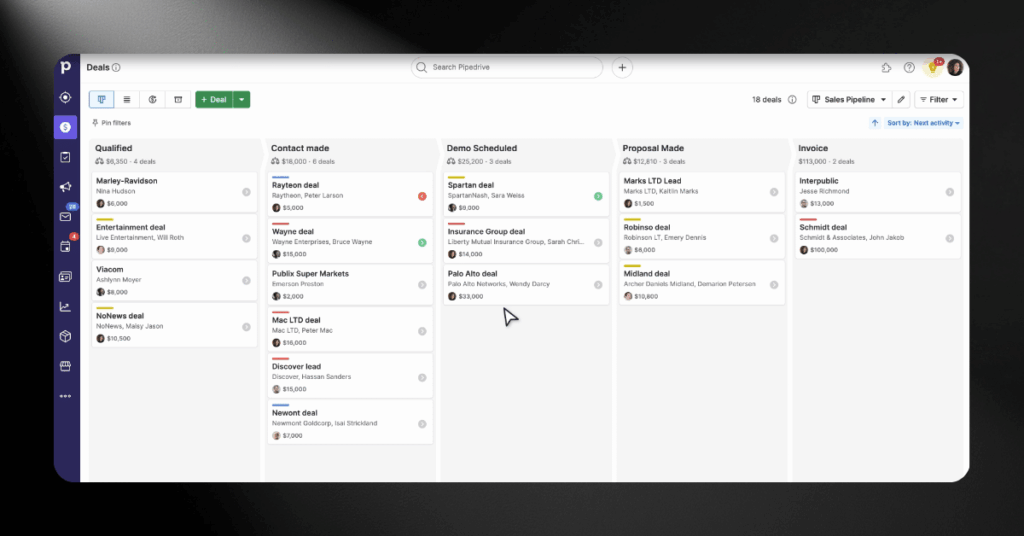
Pipedrive is built around the sales pipeline. Its core entities are Leads, Deals, Persons (contacts), Organizations, Activities, and Products. Everything feeds into a visual pipeline where deals move through stages toward closing.
Each entity supports custom fields, which are referenced by unique 40-character hash keys in the API. Pipedrive’s REST API (now in v2) offers full CRUD operations for all core entities, along with webhooks for real-time event notifications. The API enforces a limit of 10,000 POST/PUT requests per 24-hour period per token.
Where LinkedIn thinks in terms of people and relationships, Pipedrive thinks in terms of deals and revenue. That fundamental difference is what makes field mapping between them so important to get right.
Pipedrive data in a nutshell: Deal-centric, fully customizable, and organized around pipeline stages. You get leads, contacts, organizations, and activities, all accessible through an open REST API with custom field support.
Challenges of a LinkedIn-Pipedrive Integration
No integration is plug-and-play when there’s no native connection between platforms. Here are the most common roadblocks teams run into when linking LinkedIn with Pipedrive, and how to handle each one.
Challenge #1: Third-Party Tools Add Complexity
Every integration relies on at least one additional tool. That third-party layer adds cost and potential failure points. Extensions can break after browser updates, automation platforms can hit API limits, and webhook connections can silently fail.
For smaller teams, this might mean one Chrome extension. For larger organizations, it can mean juggling three or four tools just to keep LinkedIn data flowing into Pipedrive reliably.
Challenge #2: Duplicate Contacts Pile Up Fast
When multiple team members sync LinkedIn contacts into the same Pipedrive account, duplicates multiply quickly. One rep imports a prospect through Surfe, another adds the same person through a Zapier flow, and a third creates a manual entry after a phone call.
This fragments conversation history, confuses activity tracking, and makes reporting unreliable.
Challenge #3: LinkedIn Message Sync Is Fragile
Pushing contact data into Pipedrive is straightforward. But syncing actual LinkedIn conversations is another story. LinkedIn doesn’t offer public API access to direct messages, so browser extensions scrape message content from the interface itself.
Messages only sync when your browser is open, the extension is active, and the LinkedIn tab is loaded. If any of those conditions breaks, your conversation log goes blank.
LinkedIn-Pipedrive Integration Alternatives
If the third-party tool approach feels too patchy for your workflow, there are other paths worth considering. Some swap out one side of the equation entirely, while others replace the middleman with a different kind of connector.
- CRMs with native LinkedIn integration (HubSpot, Breakcold, folk CRM). Best if you’re open to switching away from Pipedrive in exchange for a tighter, built-in LinkedIn connection with no extra tools needed.
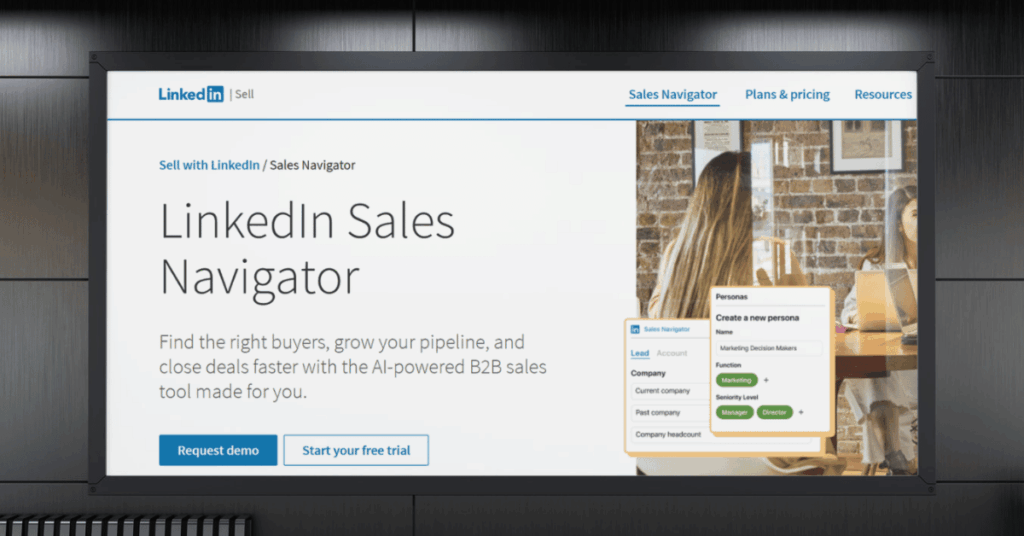
- LinkedIn Sales Navigator as a standalone. Best for reps who need advanced search and lead tracking but can handle pushing qualified leads into Pipedrive manually. Works at low volume, breaks down fast at scale.
- Full-service integration via a CRM agency. Best for businesses that want LinkedIn and Pipedrive connected properly without doing the wiring themselves. An agency handles field mapping, deduplication, enrichment, and ongoing maintenance.
- Manual CSV export and import. Best as a free starting point for very small teams. Export your LinkedIn connections as a CSV, clean the data, and import it into Pipedrive. Zero cost, but high effort and no real-time sync.
Protecting Your LinkedIn Account During Integration
Connecting third-party tools to your LinkedIn account comes with risk if you’re not careful. LinkedIn actively monitors for automated behavior, and data privacy regulations add another layer to think about. Here’s what you need to know before flipping any switches.
LinkedIn’s Terms of Service and Automation
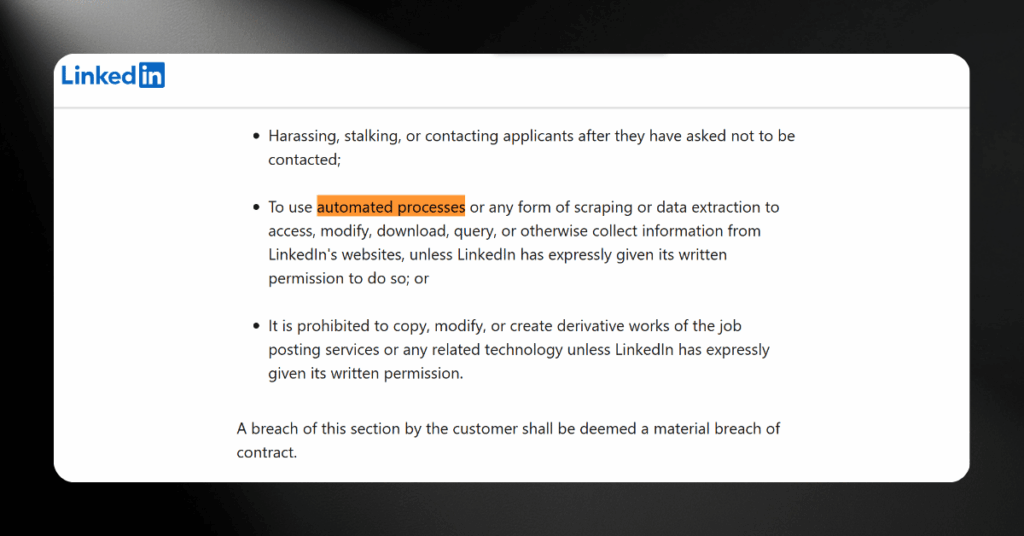
Here’s a topic that doesn’t get enough attention in most integration guides: LinkedIn actively monitors for automated behavior, and it will restrict or suspend accounts that cross the line. Before plugging any tool into your LinkedIn account, you need to understand where that line sits.
LinkedIn’s User Agreement prohibits scraping, unauthorized data collection, and using bots to send messages or connection requests. While many popular tools technically operate in a gray area, the risk of an account restriction is real and well-documented.
Data Privacy and GDPR Compliance
If your business operates in or sells to customers in Europe, you need to think about how this integration handles personal data under GDPR. Syncing someone’s LinkedIn profile information into your CRM counts as processing personal data, and you need a lawful basis for doing so.
For B2B sales, legitimate interest is the most commonly cited legal basis, but you should still maintain records of your data processing activities and honor data deletion requests.
Measuring the ROI of Your Integration
Setting up a LinkedIn-Pipedrive integration is only half the job. The other half is knowing whether it’s actually moving the needle for your sales team. Without tracking the right numbers, you’re flying blind on whether the investment is paying off.
Metrics That Actually Matter
Connecting LinkedIn with Pipedrive is only worthwhile if it produces measurable results. Too many teams set up the integration and then never look at whether it’s actually improving their sales process. Here are the numbers worth tracking.
- Time saved on data entry. Track how many minutes per day your reps spent manually inputting LinkedIn data before the integration, and compare it to their current workflow. Even saving 30 minutes per rep per day compounds quickly across a team.
- Lead response time. Measure how fast your team follows up after a LinkedIn interaction. Faster response times correlate strongly with higher conversion rates.
- Data accuracy rate. Spot-check a sample of synced records each month. Are the job titles current? Are the company names correct? Are email addresses valid?
Keep in mind: The real value of a LinkedIn-Pipedrive integration isn’t just in the hours saved. It’s in the deals your team would have missed because a lead sat in LinkedIn for too long or a contact never made it into the pipeline at all. Track your pipeline velocity before and after the integration goes live to see the full picture.
Free vs Paid: Comparing Your Options Side by Side
Every team’s situation is different, and the right integration method depends on your budget, team size, and technical resources. Here’s a quick way to think about the two main categories of tools available.
Manual CSV exports from LinkedIn, free Zapier plans with limited triggers, and basic browser extension tiers. These work for solo users or very small teams who need occasional syncing rather than real-time automation. The trade-off is higher manual effort and slower data flow.
Premium browser extensions (typically $20-50 per user per month), paid automation plans, and dedicated LinkedIn outreach tools with CRM connectors. These suit teams running active outbound campaigns where speed and accuracy matter. The investment pays for itself when your reps are saving hours of manual work each week.
Scaling Your Integration Over Time
Your integration needs will change as your team grows. What works for a five-person sales team won’t hold up when you’ve scaled to twenty reps across multiple territories. Plan for growth from the start.
#1 Start Simple
Begin with a single browser extension and a clear field mapping document. Get your team comfortable with the basic sync workflow before adding complexity. Trying to automate everything on day one usually leads to messy data and frustrated reps.
#2 Add Automation Gradually
Once your team has a consistent prospecting rhythm, layer in automation through Zapier or Make. Start with your highest-volume trigger (like LinkedIn Lead Gen Form responses) and build from there. Each new automation should solve a specific, documented pain point.
#3 Invest in Professional Setup When Volume Demands It
When you’re syncing hundreds of contacts per week across a multi-rep team, the DIY approach starts breaking down. That’s when bringing in a CRM integration specialist makes financial sense. They’ll build a reliable, scalable system that your team can trust as it grows.
LinkedIn Pipedrive Integration FAQ
Let’s Build Your LinkedIn-Pipedrive Bridge
Getting LinkedIn and Pipedrive to work together shouldn’t feel like a puzzle with missing pieces.
If you want a setup that actually works, our team at CRM360 builds integrations that last. No guesswork, no duct tape, just a clean connection between your prospecting and your pipeline.
Get in touch with us here and tell us what you’re working with.